The Idiots Guide to Vegas

For help and discussion concerning Magix's (formerly Sony's) Movie Studio and Vegas Pro editing software.
Post Reply
User avatar
AimoAio
Being elegantly...lazy
Joined: Sun Mar 16, 2008 12:19 pm
Location: Somewhere
Contact:
Org Profile

Post by AimoAio » Thu May 01, 2008 4:24 pm

forgot to add

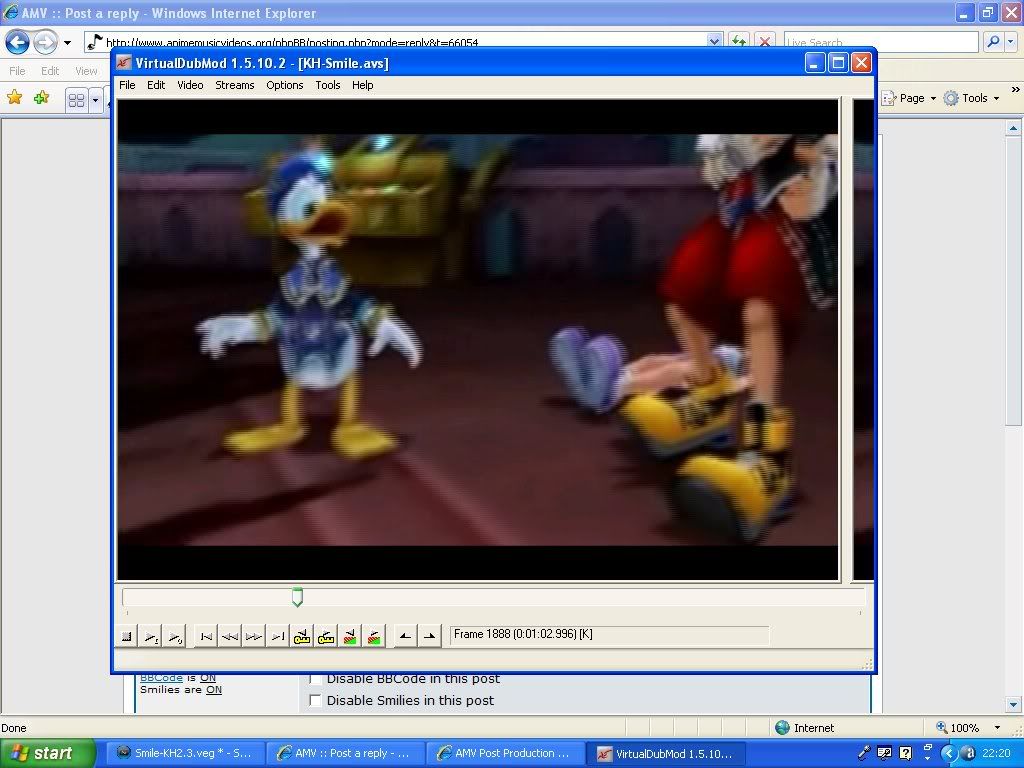
some other parts of the video have also got the same thing,bit like interlacing I think.looks a bit like this

Image

User avatar
AimoAio
Being elegantly...lazy
Joined: Sun Mar 16, 2008 12:19 pm
Location: Somewhere
Contact:
Org Profile

Post by AimoAio » Thu May 01, 2008 4:33 pm

okayy interlacey bit seems to have gone all of a sudden but playback on virtualdubmod has gone really slow and the audio sounds as if the singer had a bad case of hiccups(for 4 minutes) :shock:

I added some stuff to the script

DirectShowSource("C:\Documents and Settings\Default\My Documents\My Videos\Smile-KH2.3.avi")
ConvertToYV12
Deen("w3d",3,3,5)
TDeint(mode=1)

before I added TDeint it was fine,after I added it the video went slow.And afterwards when I took it off the video was still slow!

maybe its my computer?
User avatar
JaddziaDax
Crazy Cat Lady!
Joined: Tue Mar 16, 2004 6:25 am
Status: I live?
Location: Somewhere I think O.o
Contact:
Org Profile

Post by JaddziaDax » Thu May 01, 2008 5:09 pm

is that your source or something you exported?

User avatar
AimoAio
Being elegantly...lazy
Joined: Sun Mar 16, 2008 12:19 pm
Location: Somewhere
Contact:
Org Profile

Post by AimoAio » Thu May 01, 2008 5:19 pm

something I exported.It's the video I made in vegas

User avatar
JaddziaDax
Crazy Cat Lady!
Joined: Tue Mar 16, 2004 6:25 am
Status: I live?
Location: Somewhere I think O.o
Contact:
Org Profile

Post by JaddziaDax » Thu May 01, 2008 5:46 pm

be sure to check your settings and make sure the export settings the interleave box is not checked

also check your project settings and make sure it is set as progressive

User avatar
AimoAio
Being elegantly...lazy
Joined: Sun Mar 16, 2008 12:19 pm
Location: Somewhere
Contact:
Org Profile

Post by AimoAio » Thu May 01, 2008 5:58 pm

the interleave box was selected at 0.250 lol.And where'd I check if it's progressive or not?

User avatar
Radical_Yue
Joined: Fri Feb 04, 2005 8:45 pm
Status: The flamer with heart of gold~<3
Org Profile

Post by Radical_Yue » Thu May 01, 2008 6:01 pm

squallxrinoa wrote:the interleave box was selected at 0.250 lol.And where'd I check if it's progressive or not?

Image

User avatar
AimoAio
Being elegantly...lazy
Joined: Sun Mar 16, 2008 12:19 pm
Location: Somewhere
Contact:
Org Profile

Post by AimoAio » Thu May 01, 2008 6:07 pm

thanks to both of yous,rendering the video now,hopefully it'll come out right or I'd have to spend another half an hour rendering it again :(

User avatar
AimoAio
Being elegantly...lazy
Joined: Sun Mar 16, 2008 12:19 pm
Location: Somewhere
Contact:
Org Profile

Post by AimoAio » Thu May 01, 2008 6:15 pm

Well since I'm waiting I've always wanted to know if there was a simpler way of using the track motion tool.Because when I set keyframes to get 1 clip to slide out and have another slide in,the rest of the clips on the same track start off in the same but wrong position too!So I tried setting a keyframe at the start of the next clip(the one I want to be still) in the centre but when it plays back to the clip I wanted to move,it moves alright but then it just moves itself back into the centre!

Is there anyway to stop that or do I just have to use a new layer each time I use track motion?

User avatar
LivingFlame
Joined: Sat May 28, 2005 4:41 pm
Location: Closer than you think...
Org Profile

Post by LivingFlame » Thu May 01, 2008 6:28 pm

If you're just moving one clip around (or even two in the case of sliding one out and one in) just use the Pan/Crop option. Track motion is made to move the whole track, hence the name. Pan/Crop is specific to clips.
... yea ...

Post Reply

Return to “Movie Studio & Vegas Pro”