premiere 6.X isn't that hard to find. I got mine pretty cheap from Amazon.com, it was like $100. I tried the Premiere Pro trial and it's basic setup is the same. I won't be going any topic in particular, just going over Premiere's basics. As for the grammar, if people are so bothered with it, then i will fix it.Krisqo wrote:Not to add fuel to the fire... but I think most noobs will be using Premiere Pro since Premiere 6.x and later are hard as hell to find. While still marginaly the same as 6.x, stuff like the timeline setup, functions, and display are bit different. But go ahead with the guide since it will introduce the basic working of the program which is mostly the same. Do watch the spelling and grammer. This is formal writing like it or not and we perfer good speech. Just my two cents in... *runs our before flame war*
A Newbie's Guide To Adobe Premiere
-
Up In Flamez
- Joined: Sun Apr 30, 2006 6:52 pm
- Location: Los Angeles
-
salemshady

- Joined: Fri Sep 01, 2006 12:42 am
- Location: toronto, canada
cant believe this...u dont have to be formal here! sheesh.. its not like you're out here for a favor..infact.. u'r helping out all those rookies out there trying to do their own amvs! thats all there is to it.. no interview no job... nothing
i love this forum... and there are some real nice people here.. but it is totally wrong to point out faults like that for all others to read! the guy's put in a lot of effort obviously and if u want to see more guys giving a shot at providingg their version of the software guides.. then praise their effort.. and point out their mistakes through private messages! i know i'd not even care anymore if i was him.
i love this forum... and there are some real nice people here.. but it is totally wrong to point out faults like that for all others to read! the guy's put in a lot of effort obviously and if u want to see more guys giving a shot at providingg their version of the software guides.. then praise their effort.. and point out their mistakes through private messages! i know i'd not even care anymore if i was him.
-
salemshady
- Joined: Fri Sep 01, 2006 12:42 am
- Location: toronto, canada
and oh.. by the way... great job on the guide.. i had adobe premiere all along but i just never worked with it cause it looked so damn complicated!! keep up the good workuP|iN|fLaM3z wrote:premiere 6.X isn't that hard to find. I got mine pretty cheap from Amazon.com, it was like $100. I tried the Premiere Pro trial and it's basic setup is the same. I won't be going any topic in particular, just going over Premiere's basics. As for the grammar, if people are so bothered with it, then i will fix it.Krisqo wrote:Not to add fuel to the fire... but I think most noobs will be using Premiere Pro since Premiere 6.x and later are hard as hell to find. While still marginaly the same as 6.x, stuff like the timeline setup, functions, and display are bit different. But go ahead with the guide since it will introduce the basic working of the program which is mostly the same. Do watch the spelling and grammer. This is formal writing like it or not and we perfer good speech. Just my two cents in... *runs our before flame war*
-
Gepetto

- Mr. Poopy Pants
- Joined: Thu Jun 10, 2004 10:11 pm
- Status: Bored to tears
- Location: The Tokyo Settlement
- Contact:
Pointing out errors in public makes other people see that it's wrong and not do the same thing. We're not stoning anyone in front of the village elders. I tend to bitch about poor grammar on the forums if I'm in a bad mood, but I agree that it isn't that big a deal. HOWEVER, writing a guide is different. It requires specificity, and specificity requires formality. I'm not saying "abolish emoticons and metaphors" (EADFAG is full of them and it's still good), just 4V01D \/\/R1T1|\|9 1|\| L33T and don't make teh saem mistaeks that eveyrone is sikc of seein on da net. There's no downside to proper spelling, so why not?
And we do suppoort the initiative. The more guides the better. In the beginning, even the timeline tracker vexed me
And we do suppoort the initiative. The more guides the better. In the beginning, even the timeline tracker vexed me
And God spoke unto the Chicken, and He said: "Thou shalt crosseth the road", and the Chicken did cross the road, and there was much rejoicing.
My DeviantART profile
My DeviantART profile
-
BasharOfTheAges

- Just zis guy, you know?
- Joined: Tue Sep 14, 2004 11:32 pm
- Status: Breathing
- Location: Merrimack, NH
I think what Krisqo is suggesting is a lot of people use pirated software and premiere pro is all over the internet. It is a lot easier to find, therefore more people will tend to have it. Many of the concepts are similar though.uP|iN|fLaM3z wrote:premiere 6.X isn't that hard to find. I got mine pretty cheap from Amazon.com, it was like $100. I tried the Premiere Pro trial and it's basic setup is the same. I won't be going any topic in particular, just going over Premiere's basics. As for the grammar, if people are so bothered with it, then i will fix it.Krisqo wrote:Not to add fuel to the fire... but I think most noobs will be using Premiere Pro since Premiere 6.x and later are hard as hell to find. While still marginaly the same as 6.x, stuff like the timeline setup, functions, and display are bit different. But go ahead with the guide since it will introduce the basic working of the program which is mostly the same. Do watch the spelling and grammer. This is formal writing like it or not and we perfer good speech. Just my two cents in... *runs our before flame war*
On the other hand, the type of people that would need an in-depth guide to use software like this probably won't be capible of figuring out the differences on their own, now would they?

Anime Boston Fan Creations Coordinator (2019-2023)
Anime Boston Fan Creations Staff (2016-2018)
Another Anime Convention AMV Contest Coordinator 2008-2016
| | |
Anime Boston Fan Creations Staff (2016-2018)
Another Anime Convention AMV Contest Coordinator 2008-2016
| | |
-
Up In Flamez
- Joined: Sun Apr 30, 2006 6:52 pm
- Location: Los Angeles
Gepetto : i never talk with that wierd l33t way of talking..it's such so wierd...
BasharOfTheAges : ya it is pretty easy to find a copy of adobe premiere pro, you see places to download it everywhere. well back when i used the premiere pro trial, i was following a guide that used Premiere 6.X, the basics were simple but after Adobe got rid of some things (motion settings,transparency settings) in premiere pro it was a little confusing.
BasharOfTheAges : ya it is pretty easy to find a copy of adobe premiere pro, you see places to download it everywhere. well back when i used the premiere pro trial, i was following a guide that used Premiere 6.X, the basics were simple but after Adobe got rid of some things (motion settings,transparency settings) in premiere pro it was a little confusing.
-
Up In Flamez
- Joined: Sun Apr 30, 2006 6:52 pm
- Location: Los Angeles
now after a page of grammar talk...on to the tutorial! 
2. Transparency and Speed
NOTE : A SIMPLE LOWERING OF THE OPACITY CANNOT BE DONE IN VIDEO TRACK 1 BECAUSE THERE IS NO VIDEO BELOW SO DON'T ASK WHERE THE OPACITY BUTTON IS!!
in sony vegas you can move the tracks in any order you want, in premiere you can't do that.
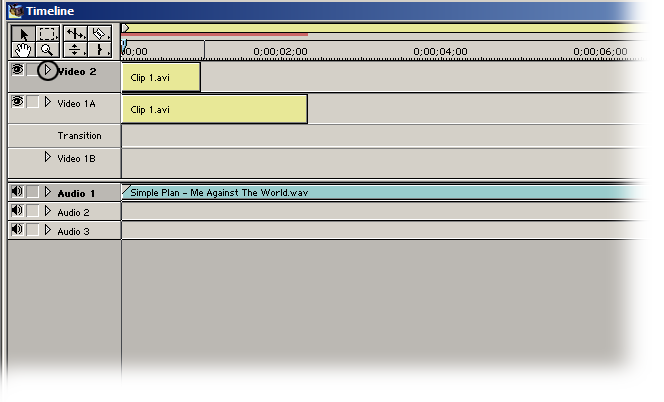
To lower the opacity of a clip, place it in video track 2 or higher and right click the little arrow on the track(make sure there is a clip below it or it will just look like a darkened clip).
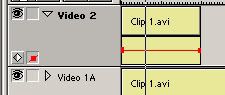
after you clicked the arrow grap the Fade Adjustment Tool and click on the red line and drag down. (TIP : HOLD DOWN THE SHIFT KEY TO SEE WHAT THE OPACITY PERCENTAGE IS)

one last that about transparency's, u you can play with other transparency settings by going to your 'Effects Control' pallette, remember the transparency settings won't be avaible in video track 1
Speed
To reverse a clip or make a clip speed up or speed down is very simple. Either right click your clip and select 'Speed' (this is for when you the clip length to be something precise)then type in the desired duration.
FOR MAKING A CLIP PLAY IN REVERSE, TYPE IN '-100' IN THE "RATE" SECTION

if you don't want a exact speed, then grab the 'Rate Stretch Tool' and grab the edge of a clip and drag it to your desired length.

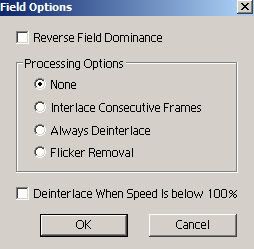
NOTE : WHENEVER YOU TRY TO SLOW DOWN A CLIP IN ADOBE PREMIERE 6.X, PREMIERE TRIES TO DEINTERLACE IT WITH A HORRIBLE METHOD. SO IF YOU SPEED UP A CLIP, RIGHT CLICK IT AND GO TO VIDEO OPTIONS > FIELD OPTIONS, AND UN-CLICK 'DEINTERLACE WHEN SPEED IS BELOW 100%'. IF YOU DON'T DO THIS, THEN YOUR CLIP WILL LOOK ALL JAGGED AND UGLY!!
The next tutorial will be on the following :
1. Video Effects
2. Transitions
3. Rendering
2. Transparency and Speed
NOTE : A SIMPLE LOWERING OF THE OPACITY CANNOT BE DONE IN VIDEO TRACK 1 BECAUSE THERE IS NO VIDEO BELOW SO DON'T ASK WHERE THE OPACITY BUTTON IS!!
in sony vegas you can move the tracks in any order you want, in premiere you can't do that.
To lower the opacity of a clip, place it in video track 2 or higher and right click the little arrow on the track(make sure there is a clip below it or it will just look like a darkened clip).
after you clicked the arrow grap the Fade Adjustment Tool and click on the red line and drag down. (TIP : HOLD DOWN THE SHIFT KEY TO SEE WHAT THE OPACITY PERCENTAGE IS)
one last that about transparency's, u you can play with other transparency settings by going to your 'Effects Control' pallette, remember the transparency settings won't be avaible in video track 1
Speed
To reverse a clip or make a clip speed up or speed down is very simple. Either right click your clip and select 'Speed' (this is for when you the clip length to be something precise)then type in the desired duration.
FOR MAKING A CLIP PLAY IN REVERSE, TYPE IN '-100' IN THE "RATE" SECTION
if you don't want a exact speed, then grab the 'Rate Stretch Tool' and grab the edge of a clip and drag it to your desired length.
NOTE : WHENEVER YOU TRY TO SLOW DOWN A CLIP IN ADOBE PREMIERE 6.X, PREMIERE TRIES TO DEINTERLACE IT WITH A HORRIBLE METHOD. SO IF YOU SPEED UP A CLIP, RIGHT CLICK IT AND GO TO VIDEO OPTIONS > FIELD OPTIONS, AND UN-CLICK 'DEINTERLACE WHEN SPEED IS BELOW 100%'. IF YOU DON'T DO THIS, THEN YOUR CLIP WILL LOOK ALL JAGGED AND UGLY!!
The next tutorial will be on the following :
1. Video Effects
2. Transitions
3. Rendering
-
Up In Flamez
- Joined: Sun Apr 30, 2006 6:52 pm
- Location: Los Angeles
3. Effects, Transitions, and Rendering
as you are reading this tutorial, you are probably wondering why you can't see your video effects and transitions. Premiere 6.X was made before computers were very powerful, so it's not a real-time editor like sony vegas or even windows movie maker.
Premiere 6.5 has a real-time preview but it's always good to render too.
What is rendering - rendering is when premiere makes preview files. (basically premiere exported your video so you can see it while working)
In premiere 6.0 you can use 'Preview from...either Screen/RAM\or disk. (disk is when premiere exports it) Preview from screen is previewing at low quality so that even a few fades might be a little laggy. Previewing from RAM is similar to After Effects, where premiere takes the segment you want and stores it in your RAM.
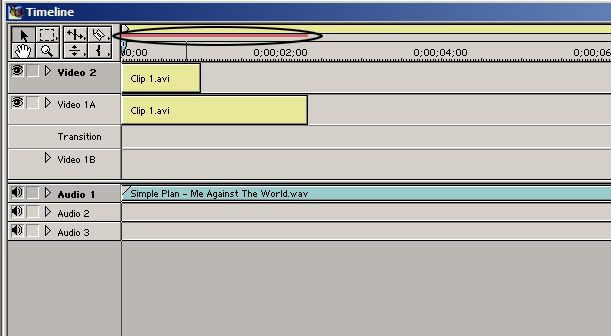
This is a unrendered timeline :
This is a rendered timeline :

the red indicates that it has not been rendered. and the green indicates that it is rendered.
TIP : MOST USERS OF PREMIERE 6.X USE THIS METHOD, ITS CALLED "SCRUBBING" where you hold down the 'Alt Key' and your arrow turns into a different shape(can't show a screen cap because 'Print Screen' doesn't show your mouse pointer) use this arrow and drag on the timeline. there will be no audio only the video. use this method for quick fades and stuff.
Effects :

Adobe Premiere has quite a few effects, now before you look through all of them like a kid in a candy store, rememeber that effects don't make the video. Also some effects in premiere are quite crappy.
To add a video effect, just click and drag on the timeline. Then the effect should appear in your 'Effect Controls' pallette. Adjust your settings to the way you want them.
TIP : A GOOD THING TO DO IS TO CLICK ON THE ARROW ON THE EFFECTS CONTROL AND CLICK "PREVIEW DURING ADJUST"
it's so you can watch the effect being adjust, very good for precise effect editing

then Alt scrub your timeline and see how your effect looks.
And to delete your effect, just click it in the effects control and click the trash icon in the window
Transitions :
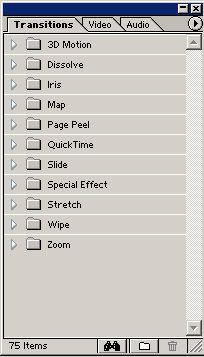
To add a transition, just like the video effects, click and drag onto the timeline.
To extend or shorten a transition, just hover your mouse over the edge of the transition and drag and resize to your desire.
To delete a transition, just click and press backspace or del or whatever.
Next Tutorial is on...umm i dunno...i'v gone over the basics
could someone suggest something? something else about premiere basics?
(i will not make a tutorial for someone asking how to do a certain effect)
as you are reading this tutorial, you are probably wondering why you can't see your video effects and transitions. Premiere 6.X was made before computers were very powerful, so it's not a real-time editor like sony vegas or even windows movie maker.
Premiere 6.5 has a real-time preview but it's always good to render too.
What is rendering - rendering is when premiere makes preview files. (basically premiere exported your video so you can see it while working)
In premiere 6.0 you can use 'Preview from...either Screen/RAM\or disk. (disk is when premiere exports it) Preview from screen is previewing at low quality so that even a few fades might be a little laggy. Previewing from RAM is similar to After Effects, where premiere takes the segment you want and stores it in your RAM.
This is a unrendered timeline :
This is a rendered timeline :
the red indicates that it has not been rendered. and the green indicates that it is rendered.
TIP : MOST USERS OF PREMIERE 6.X USE THIS METHOD, ITS CALLED "SCRUBBING" where you hold down the 'Alt Key' and your arrow turns into a different shape(can't show a screen cap because 'Print Screen' doesn't show your mouse pointer) use this arrow and drag on the timeline. there will be no audio only the video. use this method for quick fades and stuff.
Effects :
Adobe Premiere has quite a few effects, now before you look through all of them like a kid in a candy store, rememeber that effects don't make the video. Also some effects in premiere are quite crappy.
To add a video effect, just click and drag on the timeline. Then the effect should appear in your 'Effect Controls' pallette. Adjust your settings to the way you want them.
TIP : A GOOD THING TO DO IS TO CLICK ON THE ARROW ON THE EFFECTS CONTROL AND CLICK "PREVIEW DURING ADJUST"
it's so you can watch the effect being adjust, very good for precise effect editing
then Alt scrub your timeline and see how your effect looks.
And to delete your effect, just click it in the effects control and click the trash icon in the window
Transitions :
To add a transition, just like the video effects, click and drag onto the timeline.
To extend or shorten a transition, just hover your mouse over the edge of the transition and drag and resize to your desire.
To delete a transition, just click and press backspace or del or whatever.
Next Tutorial is on...umm i dunno...i'v gone over the basics
could someone suggest something? something else about premiere basics?
(i will not make a tutorial for someone asking how to do a certain effect)
-
Gepetto
- Mr. Poopy Pants
- Joined: Thu Jun 10, 2004 10:11 pm
- Status: Bored to tears
- Location: The Tokyo Settlement
- Contact:
Read your own name lately? Anyways, I was speaking to salemshady, the l33t and weird writing were just examples.uP|iN|fLaM3z wrote:Gepetto : i never talk with that wierd l33t way of talking..it's such so wierd...
And God spoke unto the Chicken, and He said: "Thou shalt crosseth the road", and the Chicken did cross the road, and there was much rejoicing.
My DeviantART profile
My DeviantART profile
-
CrackTheSky

- has trust issues
- Joined: Sun Aug 27, 2006 11:01 pm
- Status: Maybe editing?
- Location: Chicago
Might be a good idea to go over exportation. Also, if there's a pan/crop option in Premiere, might be a good idea to cover that. And masking, if it's not included in the pan/crop editor.uP|iN|fLaM3z wrote:could someone suggest something? something else about premiere basics?
(i will not make a tutorial for someone asking how to do a certain effect)
